Import Simulation Results In Excel
If you run reservoir simulations in ECLIPSE or in CMG IMEX, GEM or STARS, you can import the result vectors straight into Excel with a couple of clicks.
| Simulator | File to pick |
|---|---|
| ECLIPSE | .SMSPEC, with its .UNSMRY in the same folder (or the formatted .FSMSPEC) |
| CMG IMEX, GEM, STARS | .sr3 |
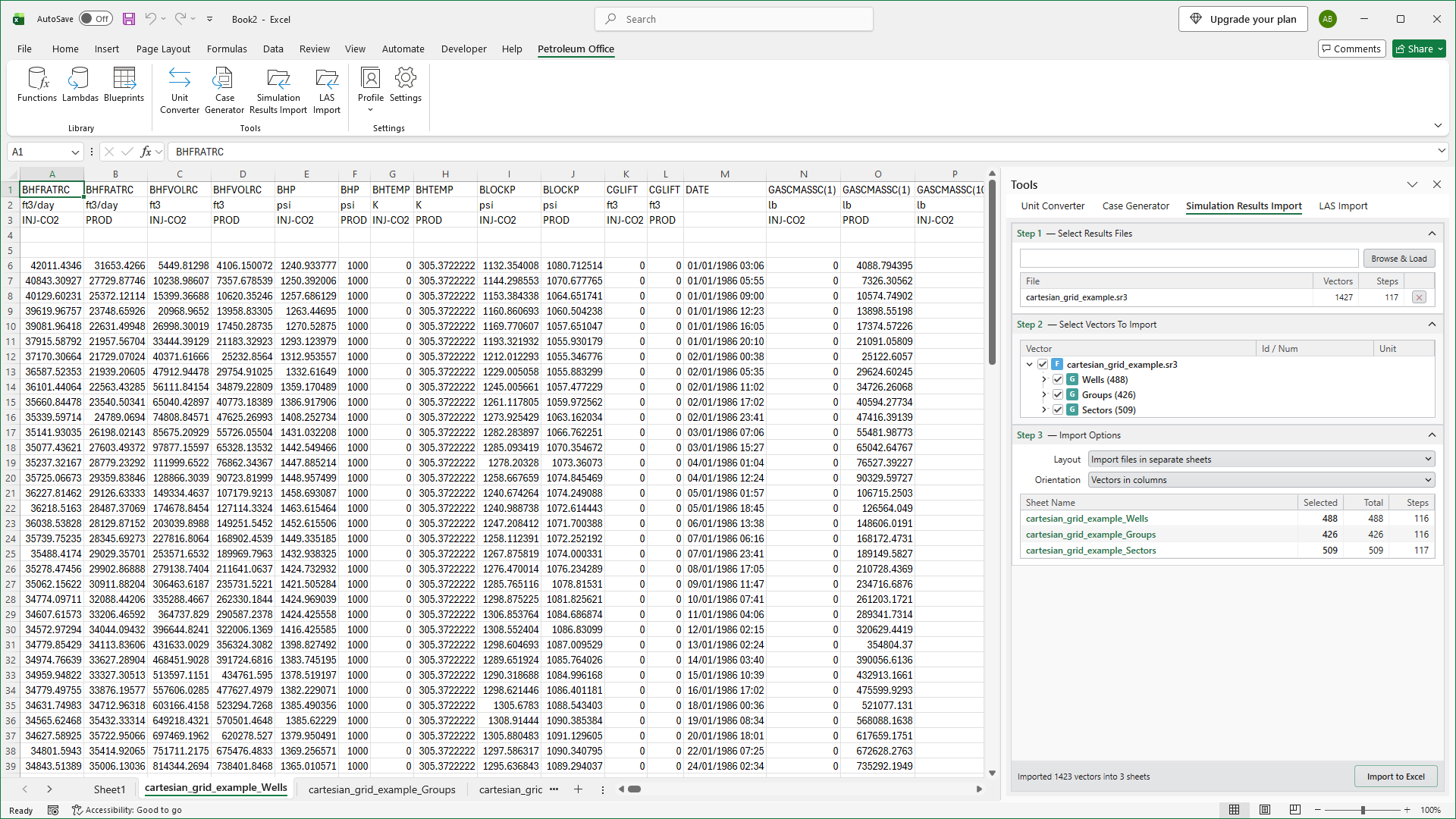
Step 1. Click Simulation Results Import in the Tools group on the Petroleum Office ribbon. The pane opens with three steps: select results files, select vectors to import, and import options.
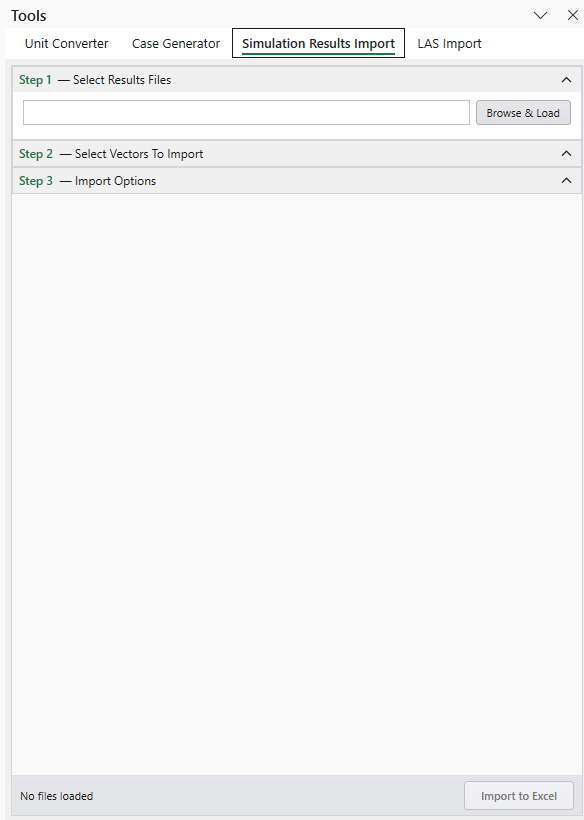
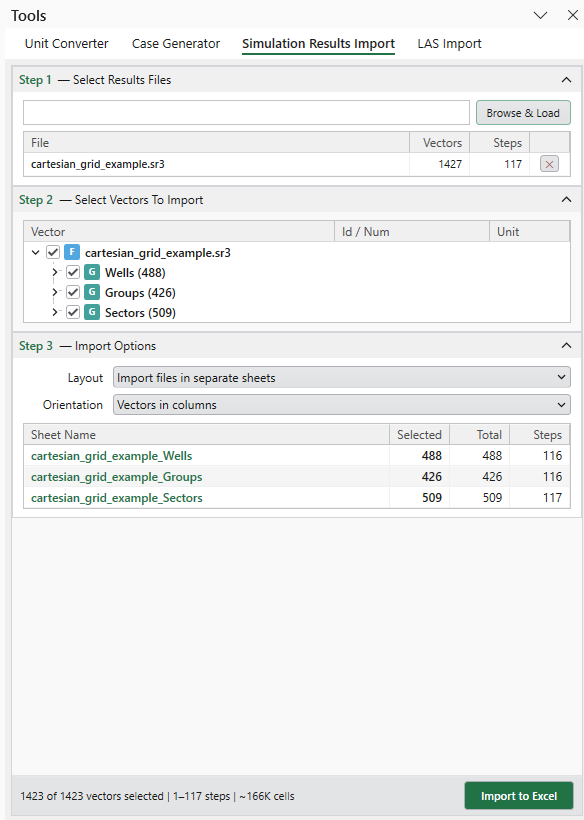
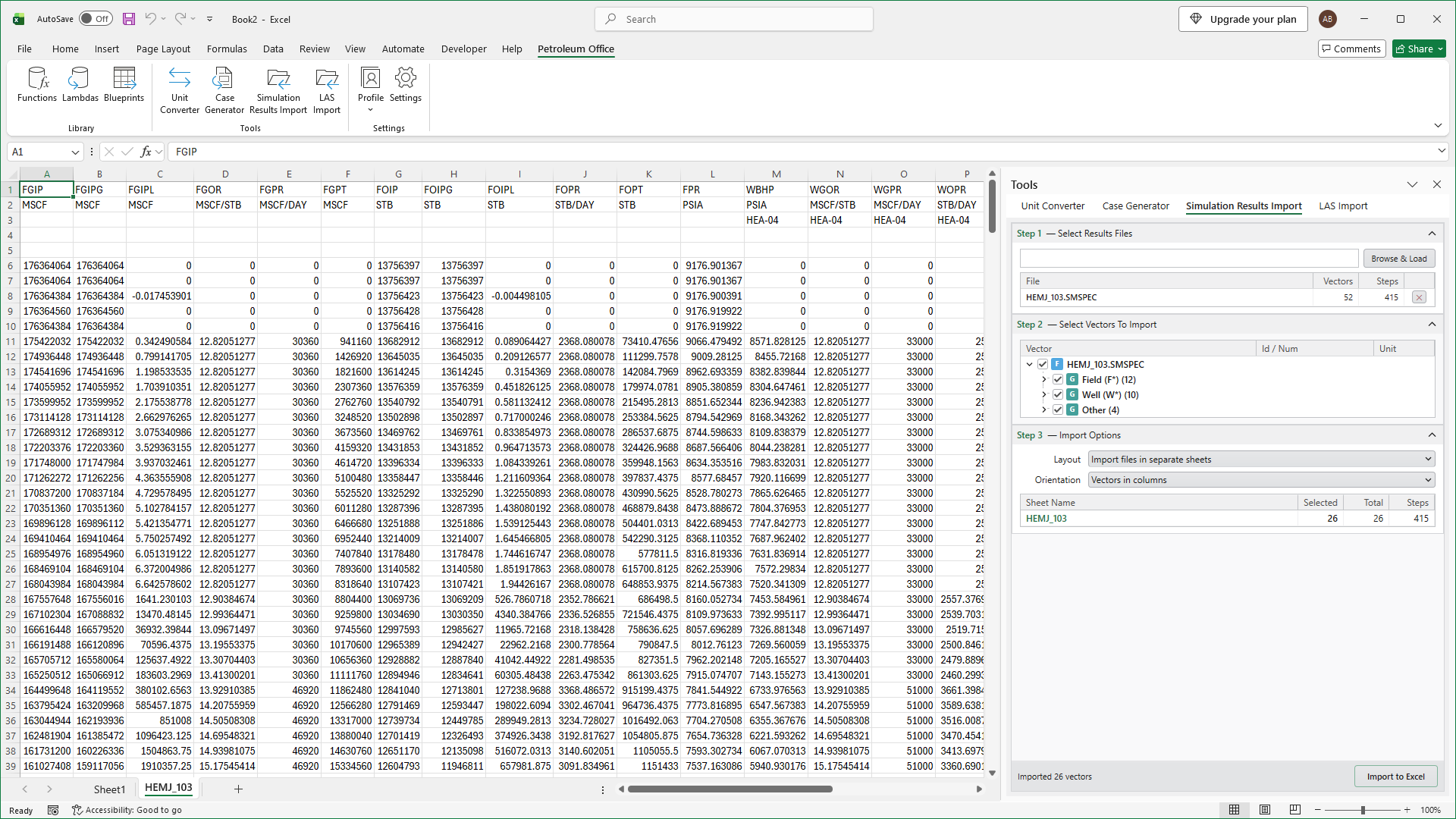
Step 2. Click Browse & Load and pick one or more results files. You can mix ECLIPSE and CMG files. Each file shows its vector and step counts, and its vectors appear under Step 2, grouped the way the simulator reports them:
- ECLIPSE — Field, Group and Well, plus Block, Region, Connection, Segment and Aquifer when the run has them.
- CMG — Wells, Groups and Sectors, plus Layers.
Tick the groups or individual vectors you want. For ECLIPSE, Field, Group, Well and Other start ticked (Other holds TIME, DATE and anything unclassified). For CMG, Wells, Groups and Sectors start ticked, each with its own TIME and DATE. The rest start unticked.
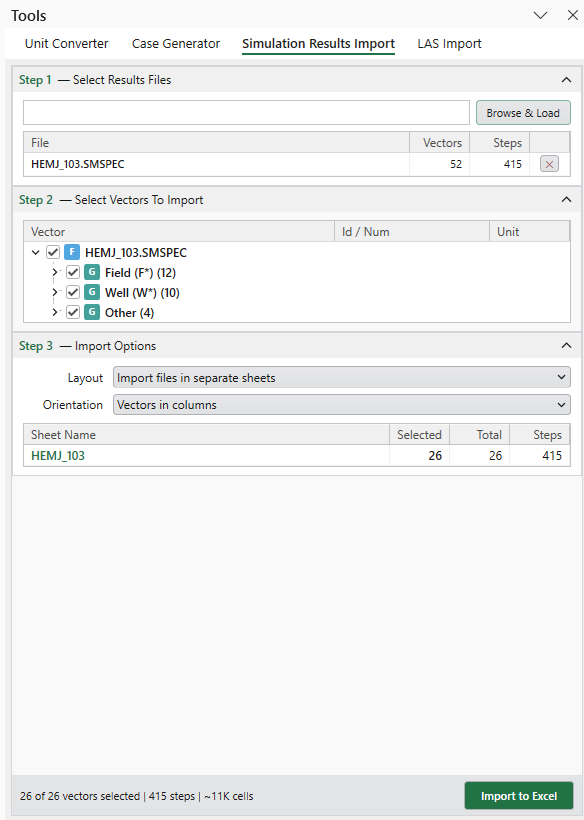
Step 3. Check the import options:
- Layout — Import files in separate sheets (one sheet per file) or Import files in one sheet.
- Orientation — Vectors in columns or Vectors in rows.
The table below the options lists every sheet the import will create, with the number of vectors and steps in each, before you commit.
A CMG file gives one sheet per category: wells, groups and sectors each have their own time steps in the results file, and one sheet holds one time axis. The sheets are named after the file and the category, for example cartesian_grid_example_Wells.
Step 4. Click Import to Excel. The status line reports how many vectors and sheets were written.
Each vector lands in its own column, with its unit and its well, group or sector beneath the name. Every sheet also offers a TIME column (elapsed days) and a DATE column (calendar date), so you can chart against either.
An ECLIPSE case becomes one sheet named after the case:
A CMG run becomes a sheet per category: