Using the Function Browser
The Function Browser is how you find a function when you do not already know its name. It holds the whole catalog as a browsable tree, with the documentation for each one alongside.
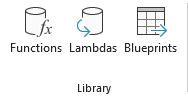
Opening It
- Go to the Petroleum Office tab in the ribbon
- In the Library group, click the Functions button
The Library pane opens with the Functions tab in front. It stays open while you work in the sheet, and shares the pane with the Lambdas and Blueprints tabs.
Finding a Function
The pane has its own toolbar row above the list:
- Tree — browse the curated hierarchy, grouped by discipline. This is the same hierarchy behind the function catalog on this website
- List — browse a flat list of every function instead
- Expand all / Collapse all — open or close every branch at once
- Search — type in the search box to filter by name or description
Search is the faster route when you have a term in mind — bubble point, Vogel, hydrate — and the tree is better when you want to see what exists for a discipline. Reading a category branch end to end is the quickest way to learn what the add-in covers in your area.
If you are trying to decode a name you have already seen rather than find a new one, Function Naming Conventions explains how the dotted names are built.
Reading the Detail Panel
Selecting a function shows its documentation. A short description sits at the top, followed by the sections that function has:
- Syntax — the call with its argument names
- Parameters — each argument, its meaning and its units
- Theory — the background behind the correlation
- References — the sources the correlation comes from
Not every function carries every section.
Units are the part worth reading. Most functions expect field units, and passing SI values returns a plausible-looking wrong answer rather than an error. The Lambdas catalog exists for exactly this reason if you work in SI.
Inserting into the Sheet
Two buttons put the selection into your worksheet, and they do different things.
Insert Function writes the function call into the active cell, ready for you to fill in the arguments. This is the normal route once you know what you want.
Insert Snippet writes a small worked example — a block of labelled input cells with the formula already referring to them. Use it when you want a working starting point rather than an empty call, or when you are meeting a function for the first time and want to see how the arguments line up. Every function has one: where no example is published, you get the same block with the value cells left empty for you to fill in.
Clear Cache
The toolbar also carries Clear Cache, which clears the cached results of every function and forces recalculation.
Petroleum Office memoises results, so calling a function again with identical arguments returns the stored answer rather than recomputing it. That is what keeps large sheets responsive, and it is invisible almost all the time.
It matters when a result should have changed but did not — most often after editing data that a function reads indirectly. Clear the cache and recalculate to be certain you are looking at a fresh answer rather than a stored one. It is safe to click at any time; the only cost is recalculation time.
Tips
- The website mirrors this catalog at /functions, where each function has its own page — useful for sharing a link with a colleague
- IntelliSense complements the browser — once you know the name, typing
=PO.in a cell is faster than opening the pane - Insert Snippet first when trying an unfamiliar correlation, then replace its inputs with yours