Simulation Results Import
Import ECLIPSE summary output and CMG .sr3 results directly into Excel — pick the vectors you need and each case lands as a worksheet ready for analysis.
How Simulation Results Import Works
From results files on disk to worksheets of vectors in three steps.
Open the pane
Pick Simulation Results Import from the Tools group on the Petroleum Office ribbon. The pane opens with three steps: select results files, select vectors, and import options.
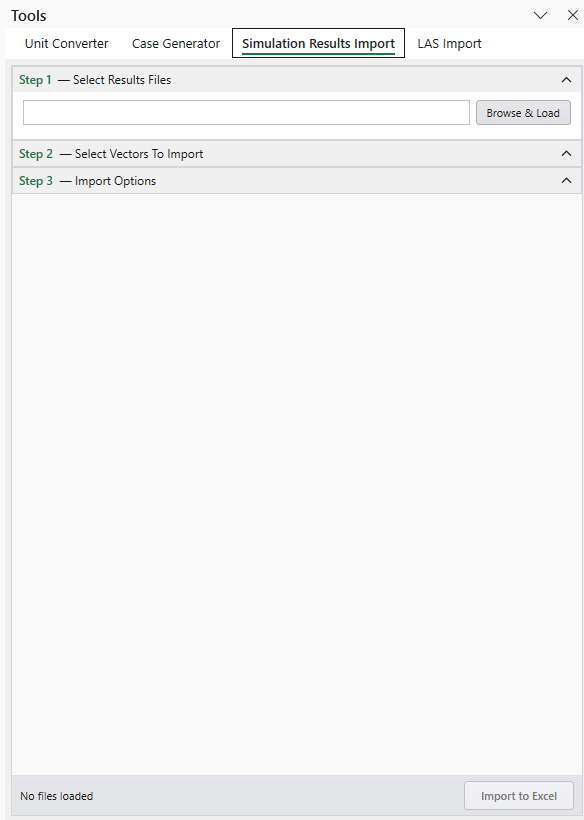
Load files and pick vectors
Click Browse & Load and pick ECLIPSE .SMSPEC files, CMG .sr3 files, or both. Vectors are grouped the way each simulator reports them — Field, Group and Well for ECLIPSE; Wells, Groups, Sectors and Layers for CMG.
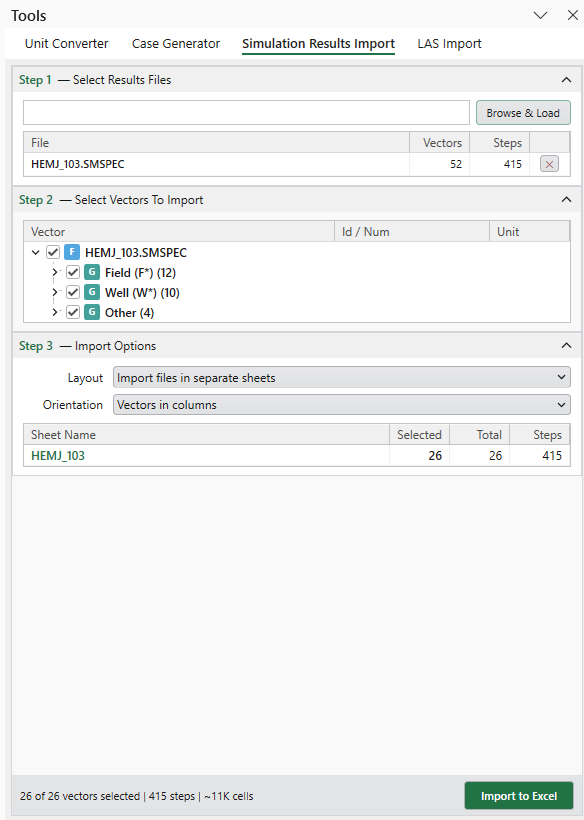
Check the sheets and import
Step 3 lists the sheets the import will create before you commit. Click Import to Excel; the pane reports how many vectors and sheets it wrote.
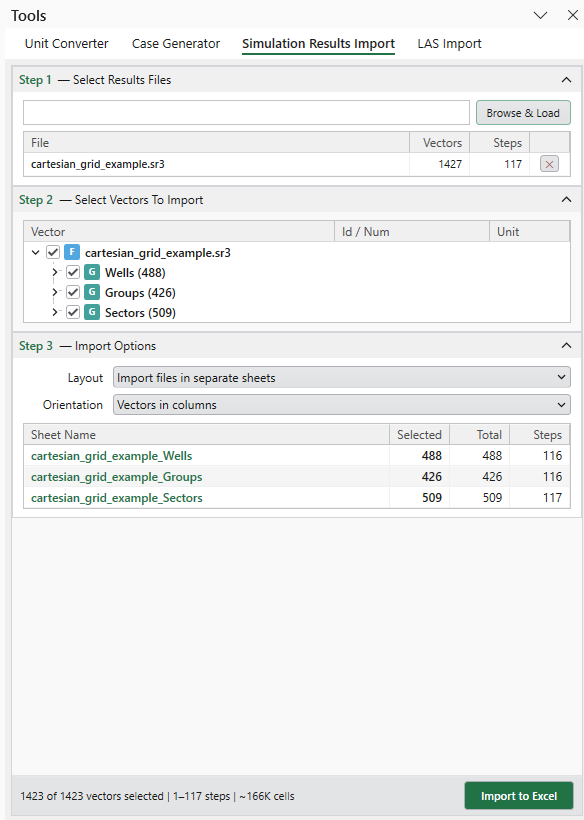
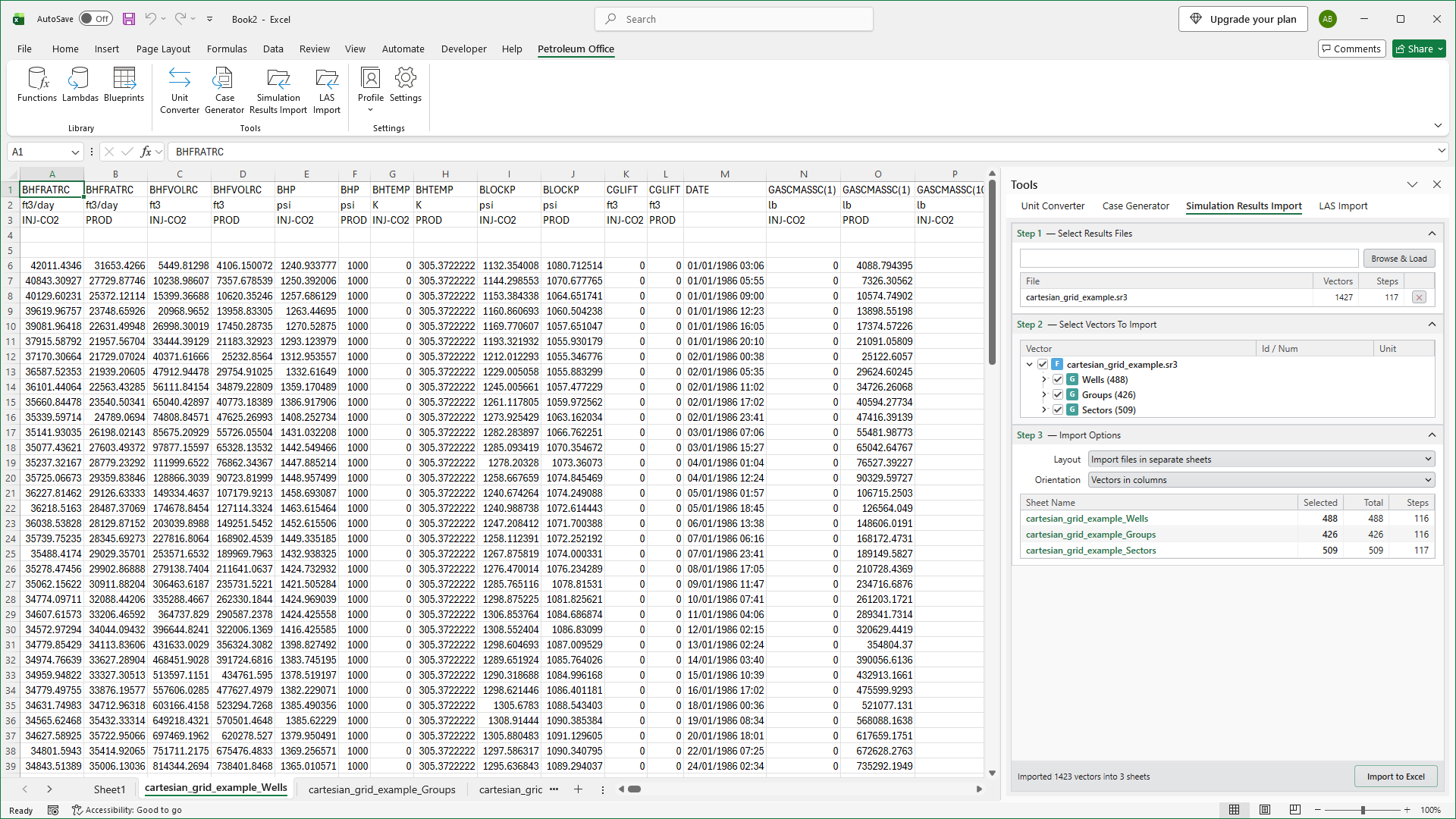
Vectors land in columns, ready for charting
Every selected vector becomes a column with its unit and well or group beneath the name, alongside TIME and DATE. An ECLIPSE case becomes one sheet; a CMG file becomes one sheet per category, because CMG reports wells, groups and sectors on their own time steps.
Features
ECLIPSE and CMG
One tool for both simulators
- ECLIPSE summary output (.SMSPEC with .UNSMRY)
- CMG IMEX, GEM and STARS results (.sr3)
- Load several files in one go
Pick What You Need
Vectors grouped as the simulator reports them
- Field, group, well and more for ECLIPSE
- Wells, groups, sectors and layers for CMG
- Preview the sheets before importing
Ready for Analysis
No manual formatting
- Units and well or group names in the header
- TIME and DATE columns for every sheet
- Separate sheets per file, or all in one
Supported File Formats
Simulator output files that can be imported.
| Simulator | Pick this file | Content |
|---|---|---|
| ECLIPSE | .SMSPEC (with its .UNSMRY) |
Field, group, well, region, block, connection, segment and aquifer summary vectors |
| ECLIPSE | .FSMSPEC (formatted) |
The same summary vectors in formatted output |
| CMG IMEX, GEM, STARS | .sr3 |
Well, group, sector and layer time series |