Eclipse Results Import
Import ECLIPSE reservoir simulator output files directly into Excel — each case becomes a worksheet with all data vectors ready for analysis.
How Eclipse Import Works
From summary files on disk to a worksheet of vectors in three steps.
Open the Eclipse Import pane
Pick Eclipse Import from the Tools group on the Petroleum Office ribbon. The pane opens with three sections: file selection, vector selection, and import options.
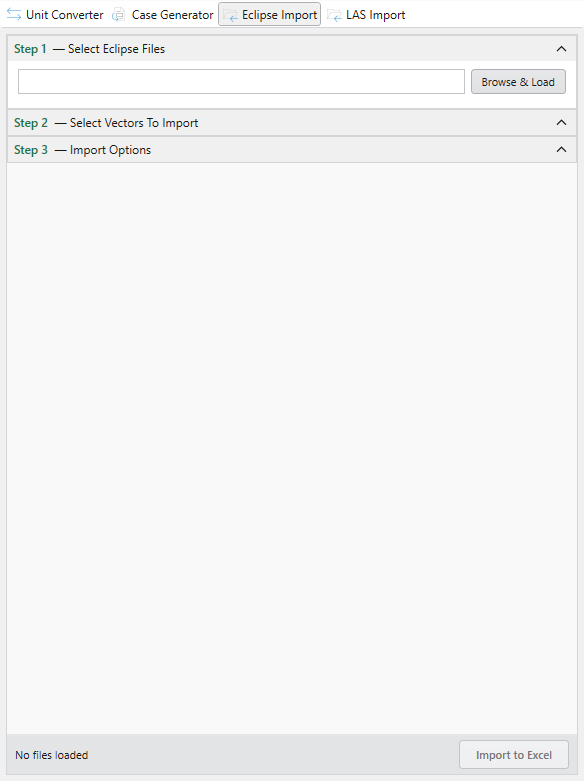
Load files and pick vectors
Click Browse & Load, pick one or more .SMSPEC or .FSMSPEC files. Each case shows up with its vector and step counts; expand to tick the Field, Group, and Well-level vectors you want.
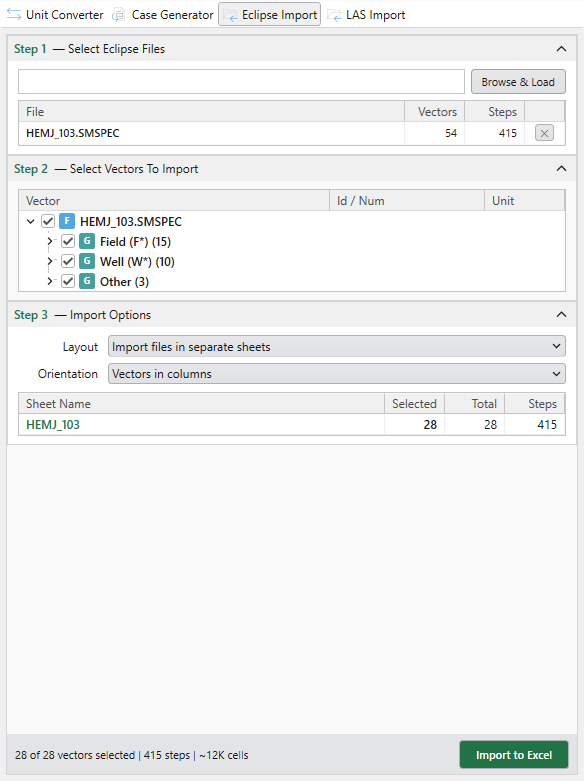
Import to Excel
Click Import to Excel. The pane reports progress and confirms success when each case lands as a fresh worksheet.
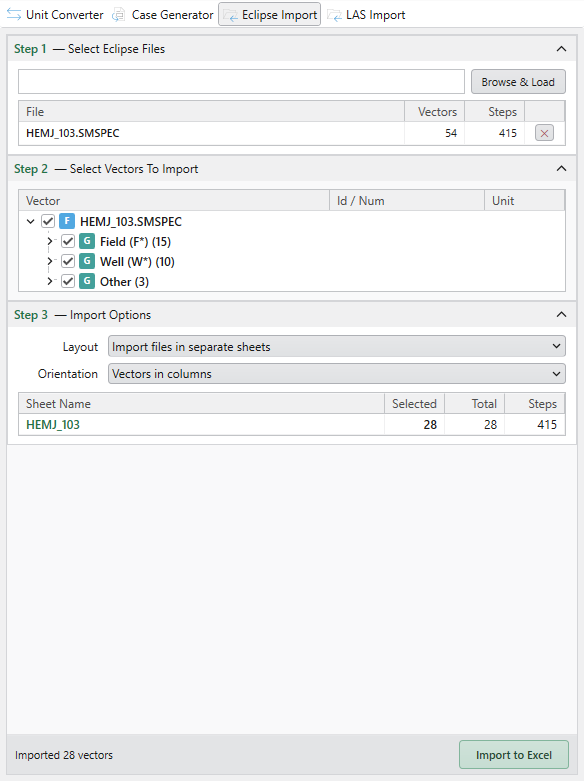
Each case becomes a worksheet
Every selected vector lands in a column on its own sheet — the time series sits alongside production and pressure curves, ready for charting.
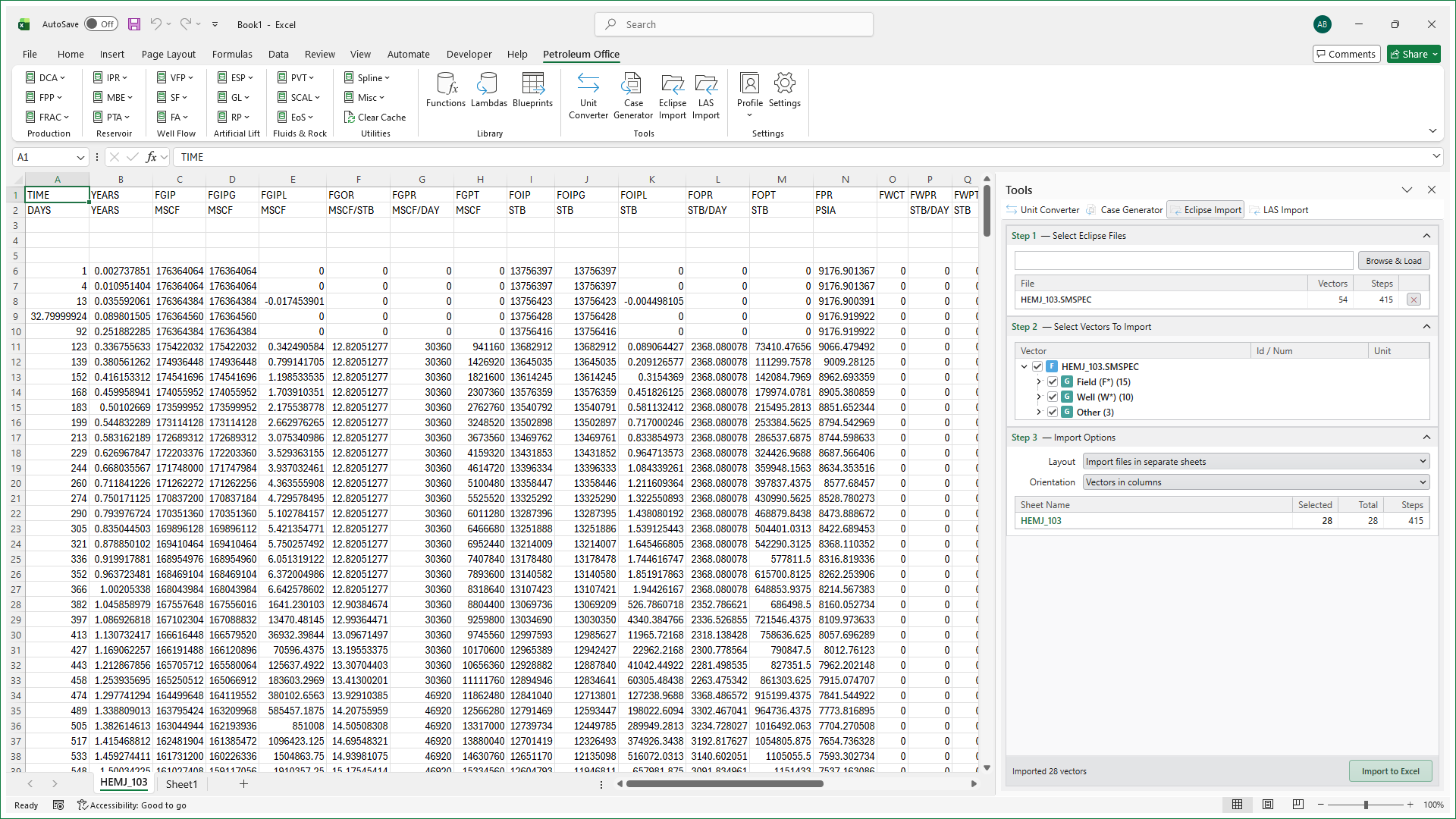
Features
Multiple Cases
Import several cases at once
- Select multiple .SMSPEC files in one go
- Each case gets its own worksheet
- Named by case file for easy identification
All Data Vectors
Complete output data
- All summary vectors imported
- Time series in columns
- Headers from the simulation model
Ready for Analysis
No manual formatting
- Data organized for immediate charting
- Create comparison plots across cases
- Export or share as standard Excel files
Supported File Formats
Eclipse summary output files that can be imported.
| Extension | Description | Content |
|---|---|---|
.SMSPEC |
Summary specification file | Field, well, group, region summary vectors |
.FSMSPEC |
Fine summary specification file | Fine-step summary data vectors |